Helpwing is a dark-glass overlay on your desk — not a browser tab. This page maps real screenshots to each control so you know what to click before your first interview. Copy this user guide to any agent to know about the product and how to use it.
1. Welcome and sign-in
When you are not signed in, Helpwing opens on the welcome card. Fill profile and tune fields, then sign in with Google or a one-time email code.
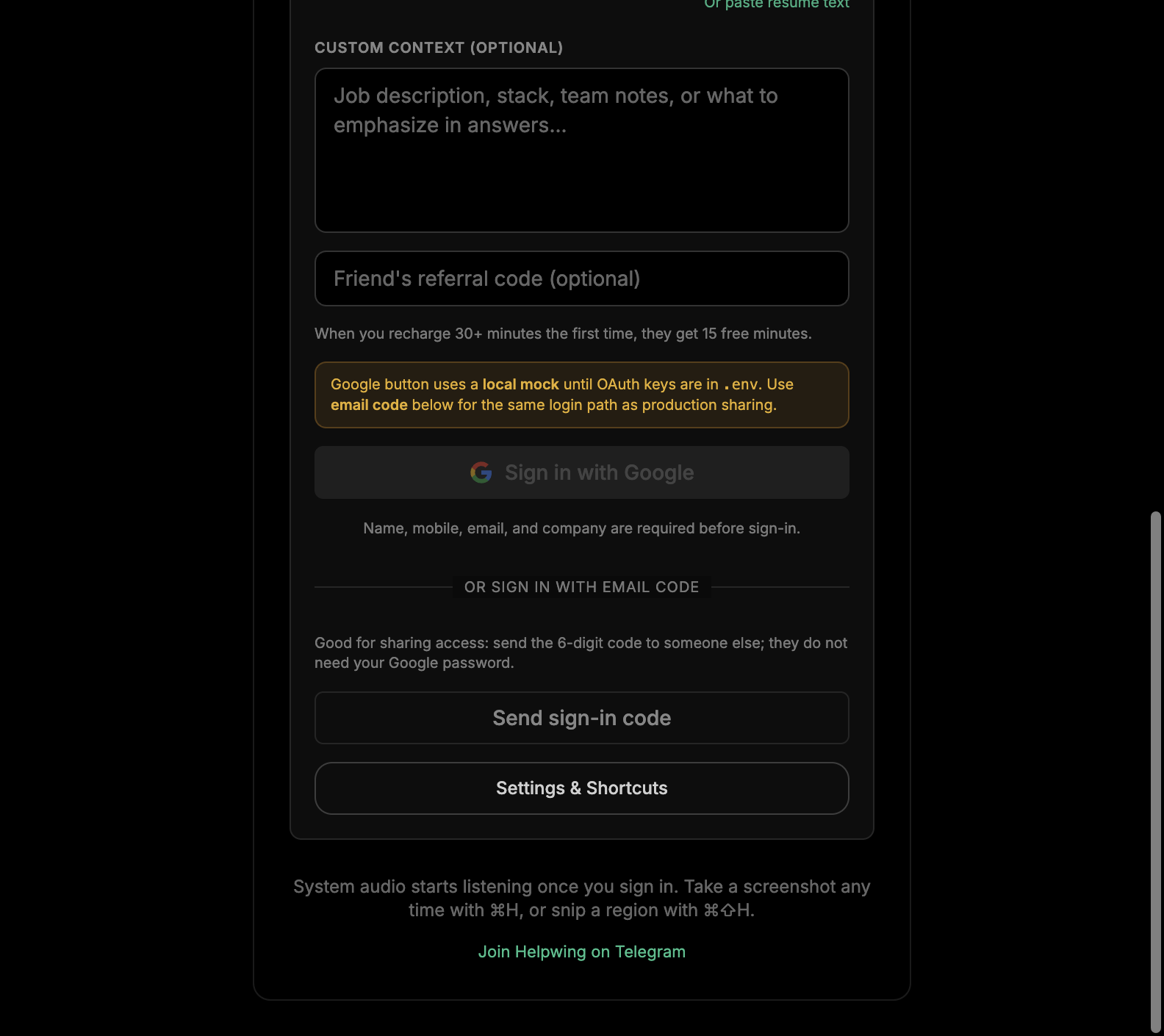
Sign-in screen: profile fields, tune-at-signup, optional referral code, and Sign in with Google.
Full name Stored on your Helpwing account and used in tuned answers.
Mobile (+91) Required contact number for your profile.
Email Collected on the form; after Google sign-in, your Google account email is authoritative.
Tune for your interview Company name (required), optional resume upload or paste, optional custom context (job description, stack, notes).
Friend's referral code (optional) Apply a friend's code before first recharge. When your first paid top-up is 30+ minutes, they receive 15 free minutes once.
Sign in with Google Opens Google OAuth when GOOGLE_CLIENT_ID / GOOGLE_CLIENT_SECRET are set on the API; otherwise local dev uses a mock page (not accounts.google.com).
Or sign in with email code Sends a 6-digit OTP to the email on the form. Handy for sharing an account — share only the code, not your Google password. In dev without Resend, the code is printed in the API terminal.
Telegram Link to the Helpwing community for tips and release notes (on the welcome card when configured).
After sign-in you may see attestation (18+, employer allows AI where relevant) before the overlay opens. Practice mock interviews can also run from the welcome flow when you are signed in but not in a live session.
2. Main overlay (live interview)
This is the screen you keep on top during a call. One command bar, a transcript strip when audio is on, a conversation thread, and a typed input at the bottom.
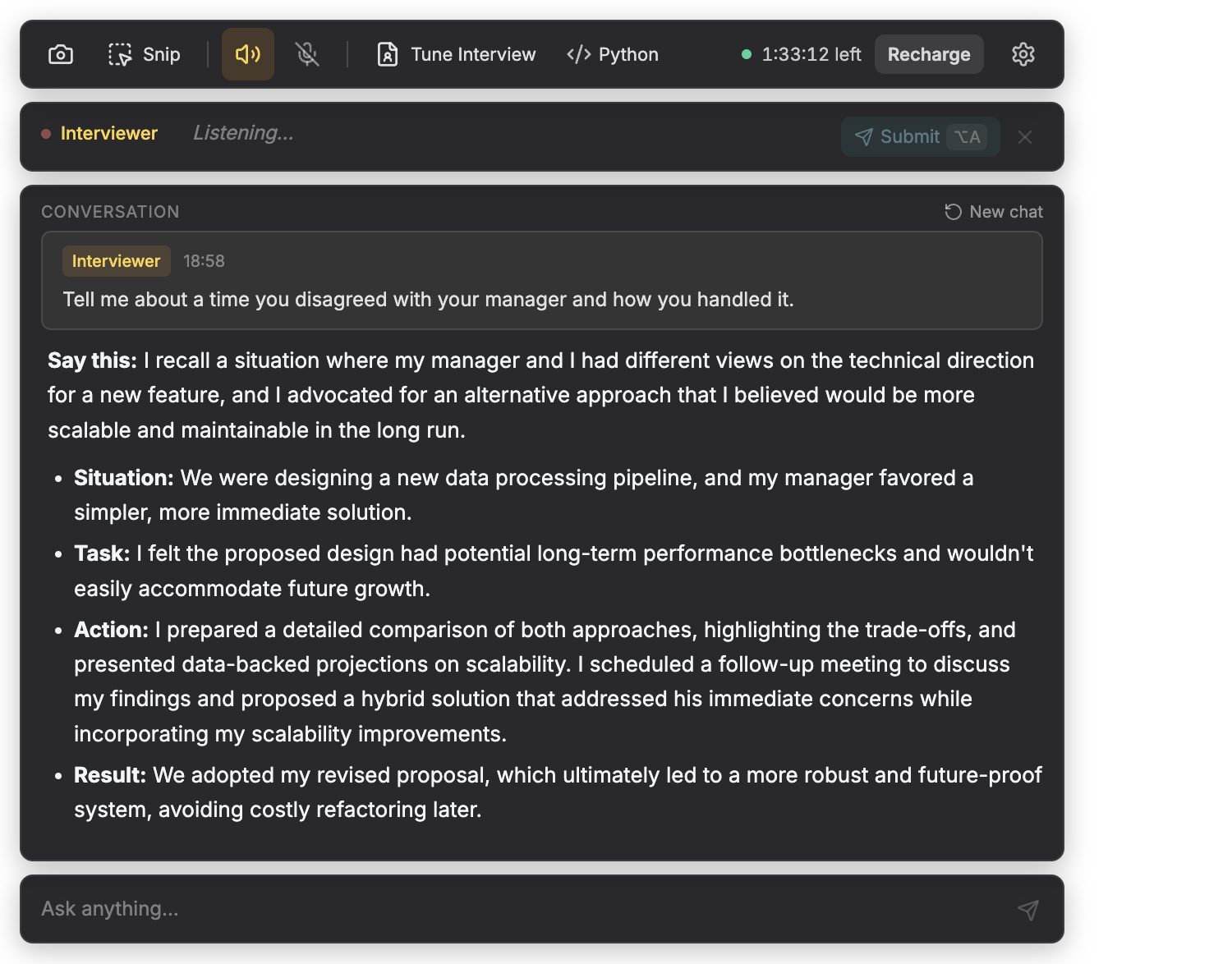
Live overlay: command bar on top, transcript bar when audio is on, conversation thread, and ask box at the bottom.
Command bar options
Screenshot (camera) Queues a full-screen capture. Badge shows how many shots are waiting. Solve with ⌘/Ctrl+Enter.
Snip (Mac) Drag a rectangle to capture part of the screen. On Windows/Linux, use full screenshot instead.
System audio Listens to the interviewer through loopback (ScreenCaptureKit on Mac, WASAPI on Windows). Amber when on. Toggle with Alt+Q.
Microphone Adds your voice to the thread when you need your line transcribed. Off by default. Toggle with Alt+W.
Tune Interview Opens the tuning dialog (resume, company, job description, notes). Same context as signup, editable anytime.
Solution language Chooses the language for code answers (Python, Java, TypeScript, Go, Rust, SQL, and others).
Minutes left Server-backed balance while a session is active. Time is debited during live sessions, not while idle.
Recharge Opens packs or custom minutes (INR, Razorpay, no auto-renew).
System audio (Interviewer) Captures everything playing on your computer — video calls (Meet, Zoom, Teams, etc.), YouTube, browser tabs, or any app with sound. Not a plugin for one meeting app.
Interviewer / You Shows the last heard line before you send it to the model.
Submit Sends the transcript line into the conversation (Alt+A interviewer, Alt+E you).
Clear Discards a bad transcription without spending a solve (Alt+D for interviewer, or ×).
Conversation thread
Turns Screenshots, snips, typed messages, and submitted audio lines append to one thread.
Answers Stream in with a speakable first line, then STAR bullets, code fences, or Mermaid diagrams on design rounds.
New chat Clears the thread (⌘/Ctrl+R). Tuning and account stay as they are.
Ask anything… Typed follow-ups at the bottom — useful when audio is off or for quick clarifications.
3. Tune Interview
Tuning keeps answers inside your real background — no invented employers or fake metrics. You can tune at signup and change it later from the command bar.
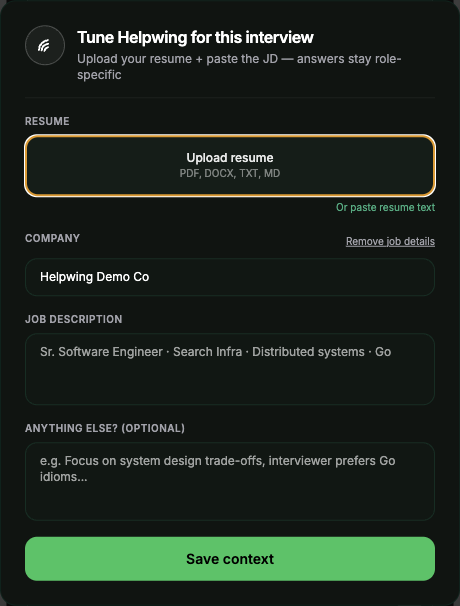
Tune Interview dialog from the command bar. Save context closes the dialog and syncs to your account.
Resume Upload PDF, DOCX, TXT, or MD — or paste resume text. Replace or remove (in the dialog) to stop using a file.
Company Where you are interviewing. Required at signup; editable here anytime.
Job description Role, stack, and team notes so answers match the JD.
Remove job details Clears company/JD/notes when you want a neutral session.
Save context Persists to Helpwing cloud and closes the dialog.
4. Settings
Open from the gear on the command bar. Helpwing uses managed cloud AI — no personal API keys in Settings.
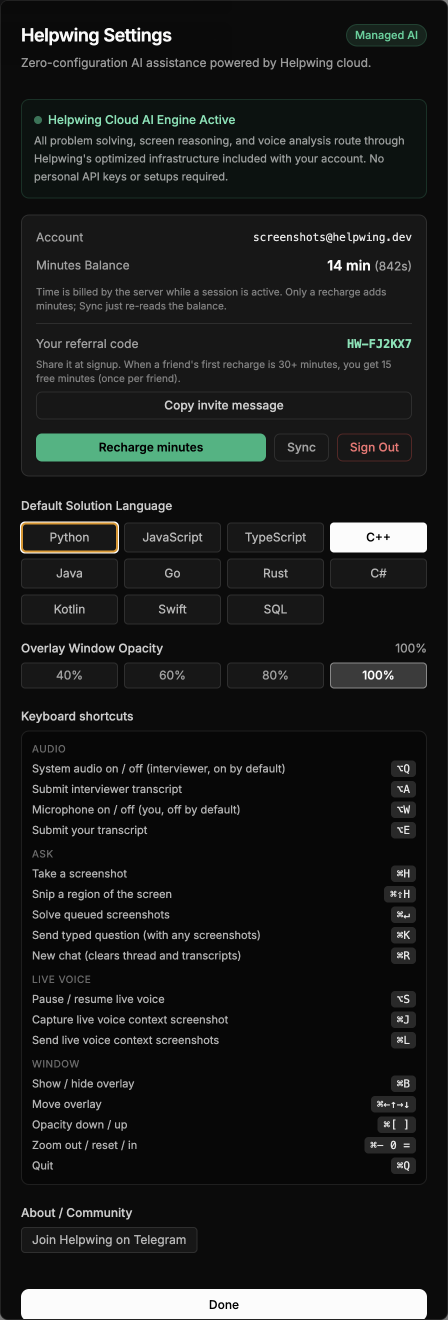
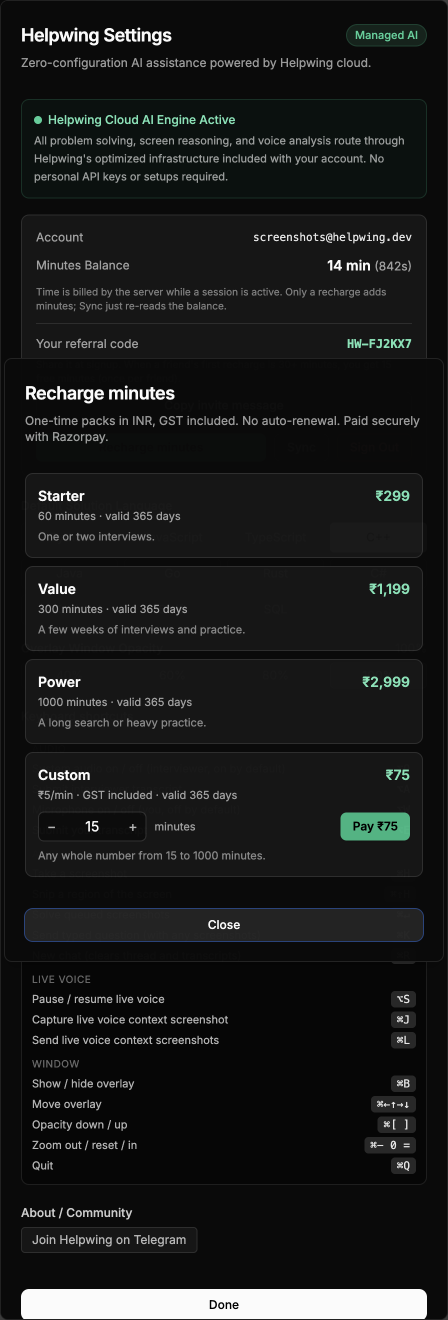
Settings — account, balance, recharge, and preferences. Your personal referral code appears under the balance row when signed in.
Helpwing Cloud AI Engine All solving, screen reasoning, and voice analysis run on Helpwing infrastructure included with your account.
Account Signed-in email from the server.
Minutes balance Remaining time in minutes and seconds. Billed during active sessions only.
Your referral code Unique code (format HW-…). Copy invite message to share. See Referrals.
Recharge minutes Opens the same recharge flow as the status bar.
Sync Re-reads balance from the server — does not add minutes.
Sign out Ends your local session and returns to welcome.
Default solution language Same choices as the command bar selector.
Overlay opacity 40%, 60%, 80%, or 100% for the glass window.
Keyboard shortcuts Default global hotkeys plus custom bindings — click Change next to any action, press your combo, Reset to restore defaults. Saved in Settings on this computer.
Community Telegram and company LinkedIn when links are configured.
5. Recharge minutes
One-time packs in INR (GST included). Pay with Razorpay — UPI, cards, netbanking. No subscription and no auto-renew.
Recharge dialog. Custom minutes (minimum 15) may appear below the packs when payments are enabled.
Starter / Value / Power Fixed minute bundles with long validity (typically 365 days).
Custom minutes Choose any whole minute count from 15 up to the server maximum; priced per minute in paise.
Checkout Opens Razorpay in a separate window; balance updates after payment is confirmed.
6. Referral program
Share Helpwing with friends who are also preparing. The rules are simple and enforced on the server — no manual claims.
At signup: enter an optional friend's referral code on the welcome form (before Google sign-in).
After signup: open Settings to see your code and tap Copy invite message.
Reward: when your friend's first successful recharge includes at least 30 minutes, you receive 15 free minutes once for that friend. Smaller first top-ups do not trigger a reward. Second and later recharges do not grant extra referral minutes.
Limits: one referrer per account; you cannot use your own code; codes must be applied before your first recharge.
Why referrals help you
Free minutes that stack
Each qualifying friend adds 15 minutes to your balance — useful during a long search without another pack.
Easy to share
Settings generates a ready-made invite line with your code and the 30-minute rule — one tap to copy.
Fair for friends
Referees still get normal signup minutes and pricing; the bonus goes to the person who invited them.
Transparent rules
First paid order ≥ 30 minutes, once per friend — same logic in the app, API, and database.